
 Branch Finder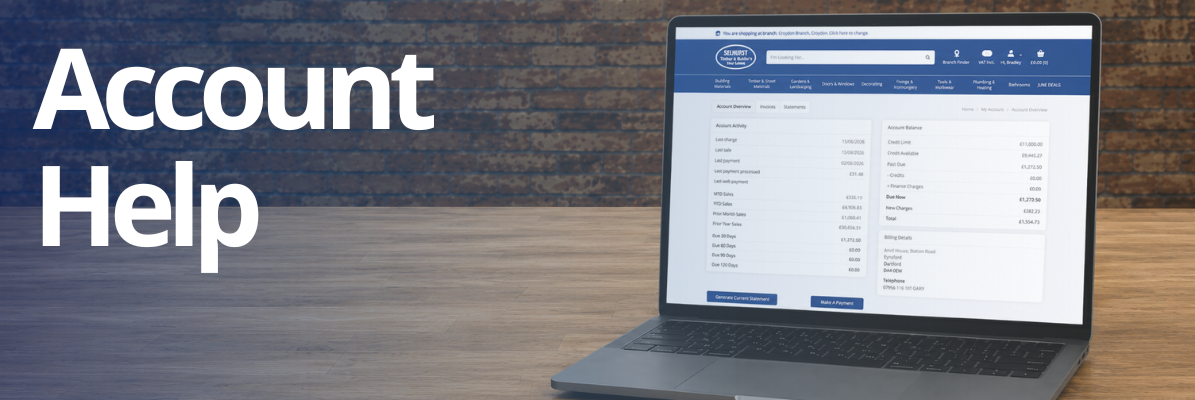
Account Help
Need help managing your trade account online? Find answers to common questions about payments, invoices, statements, online ordering, and managing additional users. If you can't find what you're looking for here, Please contact Your Local Selhurst And ask for accounts, Alternatively please email accounts@selhursttimber.com for more help
Account Access
How do I access my online trade account?
If you already have an existing Selhurst Timber account, simply visit the **Link My Account** page and complete the required details.
Once your account has been verified, you will receive an email containing your login details and a temporary password.
After receiving your login details, click **Sign In** at the top of the website and enter your email address and temporary password. You will then be prompted to create a new password and gain access to your online trade account.
I have forgotten my password. How do I reset it?
If you are already logged in to your account and would like to change your password, go to Account Overview and select Reset Password.
If you cannot log in because you have forgotten your password, click Forgot Password? on the sign in page. We will send a password reset link to your registered email address.
Simply follow the instructions in the email to create a new password and regain access to your account.
Can I use my existing Selhurst Timber account online?
Yes. If you already have a Selhurst Timber trade account, you can link it to our online account system.
Simply visit the Link My Account page and enter the requested account details. Once your account has been verified, you will receive an email containing your login details and a temporary password.
After signing in, you will be able to place orders online, view invoices and statements, make payments, and manage additional users linked to your account.
Who can access my account information?
Only users with valid login credentials for your account can access your online account information.
Your account data is securely stored and cannot be viewed by other customers or unauthorised users.
If you would like members of your team to place orders online without having access to account information, invoices, statements, balances or pricing, you can create additional users with restricted permissions. Please see the **Additional Users** section below for more information.
Statements & Invoices
How do I view my statements online?
To view your statements online, sign in to your account and click on your profile icon in the top right corner of the page. From there, select **Account Overview**.
Within the Account Overview page, you can generate an up-to-date statement by clicking **Generate Current Statement**.
To view previous statements, select the **Statements** tab at the top of the page. This will display your statement history. To open a statement, click the document icon next to the relevant statement.
Once opened, statements can be viewed, downloaded, printed, or emailed as required.
How do I download a copy of an invoice?
To download a copy of an invoice, sign in to your account and click on your profile icon in the top right corner of the page. From there, select **Account Overview**.
At the top of the page, click the **Invoices** tab to view all invoices linked to your account.
To view an invoice, simply click on the invoice number. The invoice document will then open, where it can be viewed, downloaded, printed, or emailed as required.
Can I see previous invoices and statements?
Yes. Your online account provides access to both current and historical invoices and statements.
To view previous invoices, sign in to your account, go to **Account Overview**, and select the **Invoices** tab.
To view previous statements, go to **Account Overview** and select the **Statements** tab. From here, you can view, download, print, or email any available invoice or statement linked to your account.
How often are statements updated?
Statements are generated automatically on the **1st day of each month** and will be available to view within your online account.
If you require an up-to-date statement before the next monthly statement is generated, you can sign in to your account and use the **Generate Current Statement** option within **Account Overview**.
Payments
How do I make a payment online?
To make a payment online, sign in to your account and click on your profile icon in the top right corner of the page. From there, select **Account Overview** and then click on the **Invoices** tab.
Within the Invoices section, you will see all outstanding invoices linked to your account. Select the invoice or invoices you wish to pay and click **Make Payment**.
You will then be guided through our secure payment process. Once your payment has been successfully completed, your account will be updated accordingly.
Can I pay specific invoices online?
Yes. You can choose to pay individual invoices or multiple invoices at the same time through your online account.
To do this, sign in to your account, go to **Account Overview**, and select the **Invoices** tab. From here, you can select the invoice or invoices you would like to pay and proceed to the payment screen.
Once your payment has been completed, the selected invoices will be updated on your account accordingly.
When will my payment show on my account?
Payments made through your online account will normally appear on your account immediately once the payment has been successfully authorised.
After payment has been processed, the relevant invoice and account balance will be updated automatically within your online account.
Is online payment secure?
Yes. All online payments are processed securely through our trusted payment partner, **Nuvei**, a leading global payment provider.
Nuvei uses industry-standard security and encryption technology to protect your payment information throughout the transaction process. Selhurst Timber does not store your card details on our website.
You can make payments online with confidence, knowing your payment information is handled securely.
Orders
Can I place orders online using my trade account?
Yes. Once you have signed in to your online trade account, you can browse and order from our full range of products using your agreed trade pricing.
You can search for products, check availability, and discover additional online-exclusive items not available through other ordering methods. Simply add the products you require to your basket and proceed to checkout.
Trade account customers can also enter their own **Purchase Order (PO) number** when placing an order, making it easier to track and manage purchases within their business.
Will my trade prices be shown online?
Yes. When signed in to your online trade account, your agreed trade prices will be displayed throughout the website.
This allows you to view your pricing before placing an order and makes it easier to manage purchasing and budgeting for your projects.
If you believe your pricing is incorrect, please contact our accounts team who will be happy to assist.
Can I view previous orders?
Yes. To view your previous orders, sign in to your account, click your profile icon in the top right corner, and select **Orders** from the **My Account** menu.
Here you will find a list of all your orders, including live and previous orders. To view the full details of an order, simply click on the order number.
Within the order details, you can view the products ordered, delivery address, order value, and any Purchase Order (PO) number associated with the order. You can also quickly add items back to your basket, reorder the entire order, or print a copy of the order for your records.
How do I check stock availability?
Checking stock availability is easy. Simply search for a product using the search bar or browse through our product categories.
Each product page displays the available stock levels. You will be able to see both the **delivery stock available** and the **collection stock available** at your selected branch.
Stock information is updated regularly to help you make informed purchasing decisions before placing your order.
Can I request a quote online?
Yes. You can request a quote online at any time.
Simply add the products you require to your basket and then view your basket. At the bottom of the basket page, click **Add to Sales Quote**.
Your quote request will be sent directly to the relevant branch sales team, who will review the products and provide you with a quotation as soon as possible.
Additional Users (Important)
Can I create additional users for my account?
Yes. You can create additional users if multiple members of your team need access to your account.
To add a new user, sign in to your account, click your profile icon in the top right corner, and select **Users**. Click **Add New User** and complete the required information.
Once created, you can click on the user and select **Advanced Settings** to control what they can and cannot access. You can restrict access to prices, account information, invoices, statements, payments, and more.
If you require any assistance setting up user permissions, please contact us at **[online@selhursttimber.com](mailto:online@selhursttimber.com)** and our team will be happy to help.
Can my employees place orders without accessing account information?
Yes. When creating or managing users, you can choose exactly what each user can access.
Simply go to **Users**, select the user you would like to manage, and click **Advanced Settings**. From here, you can control access to pricing, account information, invoices, statements, payments, and other account features.
This allows your employees to place orders while only having access to the areas of the account that you choose.
If you require any assistance configuring user permissions, please contact us at **[online@selhursttimber.com](mailto:online@selhursttimber.com)** and our team will be happy to help.
Can I remove a user from my account?
Yes. You can remove a user from your account at any time.
To do this, sign in to your account, click your profile icon in the top right corner, and select **Users**. Locate the user you wish to remove, click the three dots next to their profile, and select **Disable User**.
Once disabled, the user will no longer be able to access your account. If required, the user can be re-enabled at a later date.
Can multiple users access the account at the same time?
Yes. Multiple users can access your account at the same time using their own individual login credentials.
This allows members of your team to browse products, place orders, view order history, and manage their account activities without affecting other users who may also be signed in.
For security reasons, we recommend that each user has their own account rather than sharing login details.
Account Information
Can I update my account details online?
Yes. You can update your profile details and address information directly through your online account.
To do this, sign in to your account, click your profile icon in the top right corner, and access your account settings.
If you need to update any other account information, please visit our **Contact Us** page and complete the enquiry form, or email **[office@selhursttimber.com](mailto:office@selhursttimber.com)**. A member of our team will be happy to assist and will get back to you as soon as possible.
How do I change my billing address or contact information?
Can I view my account balance online?
To update your billing address or contact information, sign in to your account, click your profile icon in the top right corner, and select **Addresses**.
From here, you can view and edit your saved address information as required.
If you need to update any other account details, please email **[office@selhursttimber.com](mailto:office@selhursttimber.com)** or visit our **Contact Us** page and complete the enquiry form. Our team will be happy to assist.
Can I see my credit limit and available credit?
Yes. You can view your current account balance, credit limit, and available credit at any time through your online account.
Simply sign in, click your profile icon in the top right corner, and select **Account Overview**. Your account summary will display your current balance, credit limit, and the amount of credit currently available on your account.
This information is updated regularly, helping you keep track of your account status and available spending limit.
Support
Who do I contact if I need help?
If you need any assistance with your online account, orders, invoices, statements, payments, or account access, our team is here to help.
You can contact us by emailing **[office@selhursttimber.com](mailto:office@selhursttimber.com)** or by completing the enquiry form on our **Contact Us** page.
For online account and user access queries, you can also email **[online@selhursttimber.com](mailto:online@selhursttimber.com)**. We will respond as soon as possible and be happy to assist.
What should I do if I cannot access my account?
If you are unable to access your account, first ensure that you are using the correct email address and password. If you have forgotten your password, please use the **Forgot Password?** option on the sign in page to reset it.
If you are still unable to access your account after resetting your password, please contact us at **[online@selhursttimber.com](mailto:online@selhursttimber.com)** or complete the enquiry form on our **Contact Us** page. Our team will investigate the issue and help restore access to your account as quickly as possible.
Who do I contact about an invoice or Statement query?
If you have a query regarding an invoice, statement, payment, or any other account-related matter, please contact our accounts team.
You can email office@selhursttimber.com or complete the enquiry form on our Contact Us page. Please include your account number and any relevant invoice or statement reference numbers where possible to help us assist you more quickly.
Our team will review your enquiry and respond as soon as possible.